
Ecommerce Development
Shopify Analytics API: How to Pull Shopify Data Into Your Own Tools and Dashboards
Shopify Analytics API: How to Pull Shopify Data Into Your Own Tools and Dashboards
08 min read
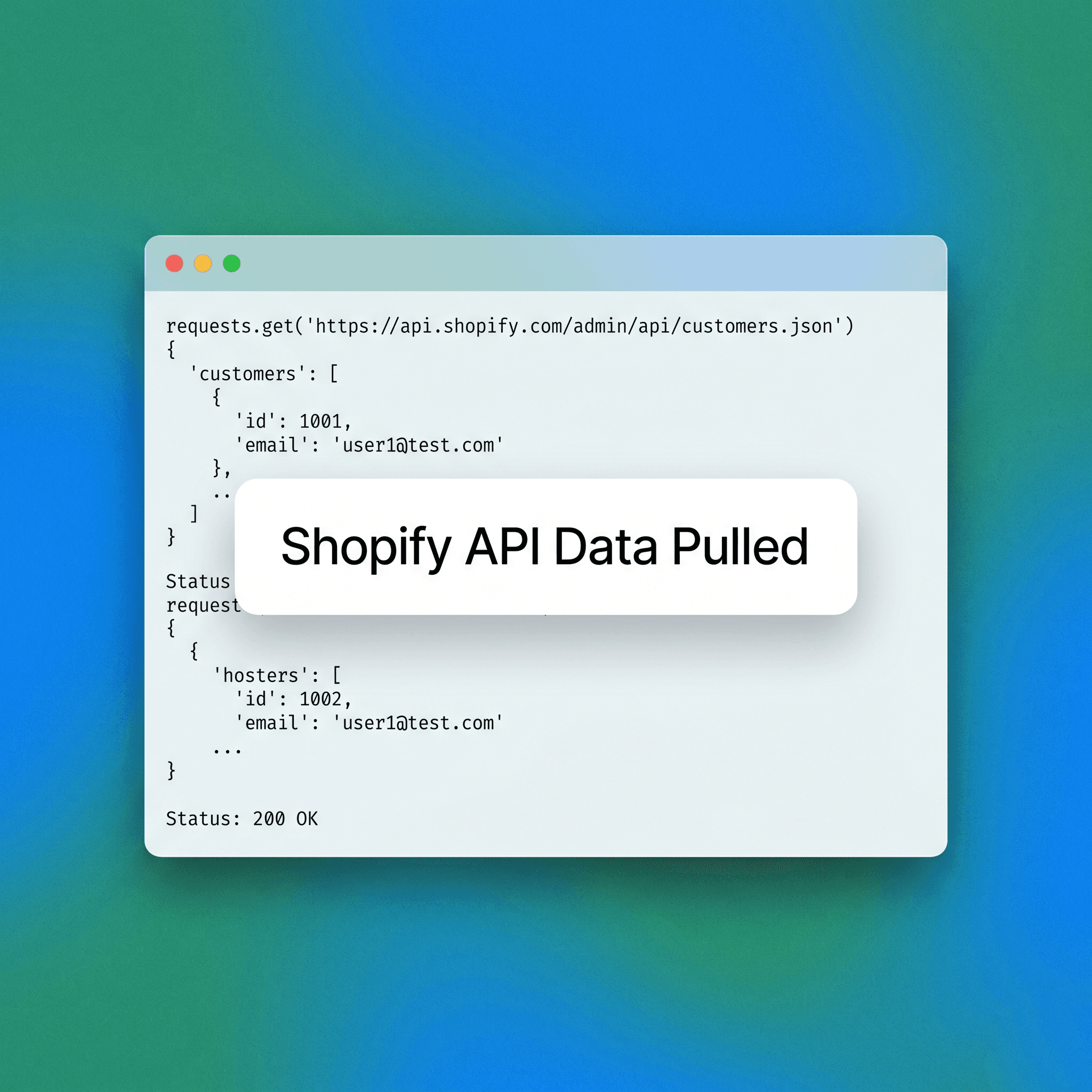
Shopify's built-in analytics will only take you so far. If you're running a serious D2C operation, you've likely already hit the ceiling — limited date range comparisons, no cross-channel attribution, and no way to blend Shopify data with your ad spend, inventory system, or customer data platform. As your brand scales, the limitations of native reporting become a bottleneck that prevents high-level strategic decision-making. By moving beyond the dashboard provided within the Shopify Admin, you gain the ability to conduct deep-dive cohort analysis, perform predictive modeling on customer lifetime value, and standardize your reporting across diverse retail channels. The Shopify Analytics API changes that. It lets you extract the data your store generates and route it into any tool or dashboard you actually want to use — whether that's Looker Studio, a custom BI stack, Google Sheets, or a proprietary internal dashboard. This architectural shift empowers teams to own their historical data, reducing reliance on the Shopify interface and fostering a data-first culture that prioritizes granular insight over generic platform summary metrics. This guide covers exactly how to do it: which API methods to use, what data you can access, how to structure your pipeline, and where most teams go wrong. Ensuring your data strategy aligns with long-term business goals requires a foundational understanding of the API's capabilities and the technical constraints governing data retrieval.
What the Shopify Analytics API Actually Gives You Access To
Before you build anything, it's worth being precise about what "Shopify Analytics API" means in practice. Shopify doesn't have a single endpoint labeled "analytics." Instead, data access is distributed across several APIs depending on what you're trying to pull. This distributed model requires developers to orchestrate multiple calls to different resources to reconstruct a comprehensive picture of store performance. Understanding this ecosystem is the first step in successful integration. The core data sources most ecommerce teams care about are accessible through the following:
Orders API — transaction-level data including revenue, discounts, refunds, line items, and customer identifiers which form the backbone of financial reporting and performance analysis.
Products API — SKU-level data including variants, pricing, and inventory quantities essential for tracking product-level velocity and managing stock-outs effectively.
Customers API — customer records, order history, tags, and email opt-in status used to build segmentation models and improve personalized marketing efforts.
Inventory API — real-time stock levels across locations, which is critical for omnichannel retailers synchronizing inventory across physical stores and digital storefronts.
Reports API — pre-built Shopify reports exposed as structured data (limited to Shopify Plus on some report types) offering a shortcut to standard Shopify metrics.
Analytics API (GraphQL) — summary metrics like sessions, conversion rate, and top products, available via the GraphQL Admin API which provides a modern interface for query-based data retrieval.
The GraphQL Admin API is increasingly the preferred access method. It's more flexible, returns less redundant data, and supports more complex queries than the legacy REST endpoints. Adopting GraphQL early in your development cycle simplifies the process of requesting specific datasets while keeping the API overhead minimal, ultimately leading to faster execution times for complex reports.
REST vs. GraphQL: Which API Should You Use?
Shopify maintains both a REST Admin API and a GraphQL Admin API. Both give you access to store data, but they behave differently and suit different use cases. Choosing the right protocol early ensures your infrastructure remains performant as your store volume grows and your reporting complexity increases.
When to use the REST Admin API
REST is simpler to get started with and well-documented. If your team has limited API experience or you're pulling data for a one-time export, REST is the faster path. Each endpoint returns a predictable JSON structure, and pagination is straightforward. Developers benefit from the intuitive nature of RESTful endpoints, which allows for rapid prototyping and quick validation of data models during the initial development phases. Use REST when you need basic order, customer, or product data and don't want to write complex queries.
When to use the GraphQL Admin API
GraphQL lets you specify exactly which fields you want returned, which reduces payload size and speeds up large extracts. It also unlocks certain data that REST doesn't expose — including some analytics summary endpoints. By allowing clients to request only the specific data points needed, developers avoid the "over-fetching" problem common with REST, resulting in more efficient network utilization and faster application responsiveness. Use GraphQL when you're building a recurring data pipeline, need high-volume data, or want to minimize API call usage against Shopify's rate limits. Most production data pipelines eventually migrate to GraphQL. If you're building something that will run on a schedule, start there.
The Shopify Data Extraction Decision Matrix
Use this framework to choose the right approach before you write a single line of code. By standardizing your approach based on the complexity and volume of the required data, you avoid technical debt and prevent the premature implementation of overly complex infrastructure that may not actually be necessary for your current stage of growth.
The Shopify Data Extraction Decision Matrix
Use Case | Recommended Method | Access Level Required | Complexity |
One-time data export | REST Admin API or CSV Export | Basic API access | Low |
Weekly scheduled report | REST API + Google Sheets connector | Basic API access | Low–Medium |
Live dashboard (sessions, CVR) | GraphQL Analytics API | Shopify Admin API scopes | Medium |
Full BI pipeline (blended data) | GraphQL + ETL tool or custom script | Admin API + OAuth app | High |
Third-party integration (Segment) | Native connector or webhook | App permissions | Medium |
Real-time event tracking | Shopify Webhooks | Webhook config | Medium |
How to Set Up API Access for Shopify Data Extraction
To pull data from any Shopify API, you need credentials. Here's the fastest path to get set up. Following these security best practices ensures your shop data remains protected while allowing for authorized programmatic access by your internal tools and data analysts.
Step 1: Create a custom app in your Shopify Admin
Go to Settings → Apps and sales channels → Develop apps. Create a new app and assign it the API scopes your data pipeline needs. Common scopes include read_orders, read_customers, read_products, and read_analytics. Granularly managing these scopes follows the principle of least privilege, ensuring that your extraction script only has access to the specific data it requires to function, thereby minimizing the surface area for potential security risks.
Step 2: Generate your API credentials
Once the app is configured, generate your Admin API access token. Store this securely — you'll use it as a bearer token in your API requests. Shopify does not re-display this token after initial generation. Using secure environment variables or a dedicated secret management service is essential, as exposing this token could grant unauthorized parties full access to your sensitive customer and order information.
Step 3: Test your first API call
A basic REST call to pull recent orders looks like this: GET https://{store}.myshopify.com/admin/api/2024-01/orders.json?status=any&limit=50. Replace {store} with your myshopify subdomain and include your access token in the request header as X-Shopify-Access-Token. Confirm you're receiving structured JSON before building anything further. This initial verification step is vital for ensuring your environment is correctly configured and your authentication credentials are valid before moving into more advanced scripting and data transformation workflows.
Step 4: Respect rate limits
Shopify's REST API uses a leaky bucket model — you get a burst allowance and a steady refill rate. GraphQL uses a cost-based system where each query has a calculated cost. Exceeding limits results in 429 errors. Any reliable pipeline must include retry logic and rate limit handling. Proactively monitoring your rate limit consumption helps your systems avoid service interruptions and ensures that your data syncs remain consistent, even during peak shopping events when API traffic is highest.
Connecting Shopify Data to Your Dashboard Tools
Once you can reliably pull data from the API, the next question is where it goes. The right destination depends on your team's tooling, technical capacity, and reporting cadence. Selecting the appropriate storage layer at this stage is crucial, as moving data between systems after your pipeline is established can be a labor-intensive and error-prone process.
Google Sheets or Looker Studio
For smaller teams, connecting Shopify data to Google Sheets via a connector (SuperMetrics, Coupler.io, or a custom Apps Script) is often the fastest path to a working dashboard. Looker Studio can then sit on top of that Sheet. This approach has limitations — latency, row caps, and manual refresh dependencies — but it works well for weekly reporting. While convenient for early-stage operations, these tools may become bottlenecks as your data volume scales, necessitating a transition to more robust enterprise-grade warehousing solutions.
Dedicated BI tools (Tableau, Power BI, Metabase)
For teams that already use a BI tool, the cleanest approach is pulling Shopify data into a warehouse (BigQuery, Snowflake, or Postgres) and connecting your BI tool to that warehouse. This gives you query flexibility, historical depth, and the ability to blend Shopify data with other sources. Consolidating your data within a single source of truth allows for the creation of sophisticated data models that can support complex cross-functional business requirements across the entire organization.
Custom internal dashboards
If you need a dashboard built around your specific KPIs — contribution margin by SKU, LTV cohorts, channel-level ROAS with Shopify revenue attribution — a custom build is often the right call. This typically involves a scheduled ETL script, a database layer, and a frontend rendering the data you actually care about. Building bespoke solutions allows for complete control over the user experience and the specific logic used to calculate metrics, which is often required for mature businesses with highly specialized reporting needs.
Pre-built connectors and ETL tools
Tools like Fivetran, Airbyte, and Stitch have native Shopify connectors that handle schema mapping, incremental syncs, and rate limit management. If you're moving toward a data warehouse setup, these reduce the engineering lift significantly compared to a fully custom pipeline. Leveraging these industry-standard tools allows your team to focus their engineering capacity on data analysis and strategic decision-making rather than the maintenance of fragile ingestion scripts and API wrappers.
Common Mistakes Ecommerce Teams Make When Building Shopify Data Pipelines
Getting API access is the easy part. Most problems show up in execution. These are the mistakes that slow teams down or produce unreliable data. Identifying these pitfalls early can save hundreds of hours of debugging and ensure that the dashboards you build are trusted and accurate representations of your business performance.
Pulling full datasets on every run. Many teams query all orders every time they sync. For a store with years of history, this burns through rate limits and creates unnecessary load. Use created_at_min and updated_at_min parameters to pull only new or updated records.
Ignoring refunds and adjustments. Order revenue in Shopify is gross. If your dashboard shows revenue without accounting for refunds, cancellations, and discount codes, your numbers are wrong. Pull refund records separately and reconcile them against order totals.
Not handling pagination. The Shopify API returns a maximum of 250 records per request. If you're not paginating through results using the Link header, you're leaving data behind.
Treating API data as real-time. There's inherent latency in any pull-based pipeline. If you're making decisions off dashboard data, know how fresh it is. Webhooks are a better choice for near-real-time use cases.
Over-scoping the build. Teams often spec out a complex multi-source pipeline when a simpler solution would meet 90% of their needs. Start with the minimum viable data set that answers your key questions, then expand.
Not documenting your schema. Shopify's API returns nested JSON. When you flatten it into a table, field names get transformed. Without documentation, no one on your team will know what order_line_items_price_set_shop_money_amount actually means six months later.
What Data You Can and Cannot Pull from Shopify
It's worth being direct about the limits of what the API exposes. You can pull: order-level revenue, line items, customer records, product and variant data, inventory levels, discount usage, fulfillment status, refunds, and certain session and conversion summary metrics. You cannot pull (or cannot pull reliably): session-level behavioral data below the summary level, individual user clickstreams, ad attribution data (that lives in your ad platforms), or real-time on-site events. For behavioral tracking, you need a separate tool — Shopify's Pixel API or a third-party event tracker like Segment or Elevar. Understanding this boundary saves significant time. Shopify is a transactional system. It records what happened after someone bought, not the full journey that got them there.
Shopify's built-in analytics will only take you so far. If you're running a serious D2C operation, you've likely already hit the ceiling — limited date range comparisons, no cross-channel attribution, and no way to blend Shopify data with your ad spend, inventory system, or customer data platform. As your brand scales, the limitations of native reporting become a bottleneck that prevents high-level strategic decision-making. By moving beyond the dashboard provided within the Shopify Admin, you gain the ability to conduct deep-dive cohort analysis, perform predictive modeling on customer lifetime value, and standardize your reporting across diverse retail channels. The Shopify Analytics API changes that. It lets you extract the data your store generates and route it into any tool or dashboard you actually want to use — whether that's Looker Studio, a custom BI stack, Google Sheets, or a proprietary internal dashboard. This architectural shift empowers teams to own their historical data, reducing reliance on the Shopify interface and fostering a data-first culture that prioritizes granular insight over generic platform summary metrics. This guide covers exactly how to do it: which API methods to use, what data you can access, how to structure your pipeline, and where most teams go wrong. Ensuring your data strategy aligns with long-term business goals requires a foundational understanding of the API's capabilities and the technical constraints governing data retrieval.
What the Shopify Analytics API Actually Gives You Access To
Before you build anything, it's worth being precise about what "Shopify Analytics API" means in practice. Shopify doesn't have a single endpoint labeled "analytics." Instead, data access is distributed across several APIs depending on what you're trying to pull. This distributed model requires developers to orchestrate multiple calls to different resources to reconstruct a comprehensive picture of store performance. Understanding this ecosystem is the first step in successful integration. The core data sources most ecommerce teams care about are accessible through the following:
Orders API — transaction-level data including revenue, discounts, refunds, line items, and customer identifiers which form the backbone of financial reporting and performance analysis.
Products API — SKU-level data including variants, pricing, and inventory quantities essential for tracking product-level velocity and managing stock-outs effectively.
Customers API — customer records, order history, tags, and email opt-in status used to build segmentation models and improve personalized marketing efforts.
Inventory API — real-time stock levels across locations, which is critical for omnichannel retailers synchronizing inventory across physical stores and digital storefronts.
Reports API — pre-built Shopify reports exposed as structured data (limited to Shopify Plus on some report types) offering a shortcut to standard Shopify metrics.
Analytics API (GraphQL) — summary metrics like sessions, conversion rate, and top products, available via the GraphQL Admin API which provides a modern interface for query-based data retrieval.
The GraphQL Admin API is increasingly the preferred access method. It's more flexible, returns less redundant data, and supports more complex queries than the legacy REST endpoints. Adopting GraphQL early in your development cycle simplifies the process of requesting specific datasets while keeping the API overhead minimal, ultimately leading to faster execution times for complex reports.
REST vs. GraphQL: Which API Should You Use?
Shopify maintains both a REST Admin API and a GraphQL Admin API. Both give you access to store data, but they behave differently and suit different use cases. Choosing the right protocol early ensures your infrastructure remains performant as your store volume grows and your reporting complexity increases.
When to use the REST Admin API
REST is simpler to get started with and well-documented. If your team has limited API experience or you're pulling data for a one-time export, REST is the faster path. Each endpoint returns a predictable JSON structure, and pagination is straightforward. Developers benefit from the intuitive nature of RESTful endpoints, which allows for rapid prototyping and quick validation of data models during the initial development phases. Use REST when you need basic order, customer, or product data and don't want to write complex queries.
When to use the GraphQL Admin API
GraphQL lets you specify exactly which fields you want returned, which reduces payload size and speeds up large extracts. It also unlocks certain data that REST doesn't expose — including some analytics summary endpoints. By allowing clients to request only the specific data points needed, developers avoid the "over-fetching" problem common with REST, resulting in more efficient network utilization and faster application responsiveness. Use GraphQL when you're building a recurring data pipeline, need high-volume data, or want to minimize API call usage against Shopify's rate limits. Most production data pipelines eventually migrate to GraphQL. If you're building something that will run on a schedule, start there.
The Shopify Data Extraction Decision Matrix
Use this framework to choose the right approach before you write a single line of code. By standardizing your approach based on the complexity and volume of the required data, you avoid technical debt and prevent the premature implementation of overly complex infrastructure that may not actually be necessary for your current stage of growth.
The Shopify Data Extraction Decision Matrix
Use Case | Recommended Method | Access Level Required | Complexity |
One-time data export | REST Admin API or CSV Export | Basic API access | Low |
Weekly scheduled report | REST API + Google Sheets connector | Basic API access | Low–Medium |
Live dashboard (sessions, CVR) | GraphQL Analytics API | Shopify Admin API scopes | Medium |
Full BI pipeline (blended data) | GraphQL + ETL tool or custom script | Admin API + OAuth app | High |
Third-party integration (Segment) | Native connector or webhook | App permissions | Medium |
Real-time event tracking | Shopify Webhooks | Webhook config | Medium |
How to Set Up API Access for Shopify Data Extraction
To pull data from any Shopify API, you need credentials. Here's the fastest path to get set up. Following these security best practices ensures your shop data remains protected while allowing for authorized programmatic access by your internal tools and data analysts.
Step 1: Create a custom app in your Shopify Admin
Go to Settings → Apps and sales channels → Develop apps. Create a new app and assign it the API scopes your data pipeline needs. Common scopes include read_orders, read_customers, read_products, and read_analytics. Granularly managing these scopes follows the principle of least privilege, ensuring that your extraction script only has access to the specific data it requires to function, thereby minimizing the surface area for potential security risks.
Step 2: Generate your API credentials
Once the app is configured, generate your Admin API access token. Store this securely — you'll use it as a bearer token in your API requests. Shopify does not re-display this token after initial generation. Using secure environment variables or a dedicated secret management service is essential, as exposing this token could grant unauthorized parties full access to your sensitive customer and order information.
Step 3: Test your first API call
A basic REST call to pull recent orders looks like this: GET https://{store}.myshopify.com/admin/api/2024-01/orders.json?status=any&limit=50. Replace {store} with your myshopify subdomain and include your access token in the request header as X-Shopify-Access-Token. Confirm you're receiving structured JSON before building anything further. This initial verification step is vital for ensuring your environment is correctly configured and your authentication credentials are valid before moving into more advanced scripting and data transformation workflows.
Step 4: Respect rate limits
Shopify's REST API uses a leaky bucket model — you get a burst allowance and a steady refill rate. GraphQL uses a cost-based system where each query has a calculated cost. Exceeding limits results in 429 errors. Any reliable pipeline must include retry logic and rate limit handling. Proactively monitoring your rate limit consumption helps your systems avoid service interruptions and ensures that your data syncs remain consistent, even during peak shopping events when API traffic is highest.
Connecting Shopify Data to Your Dashboard Tools
Once you can reliably pull data from the API, the next question is where it goes. The right destination depends on your team's tooling, technical capacity, and reporting cadence. Selecting the appropriate storage layer at this stage is crucial, as moving data between systems after your pipeline is established can be a labor-intensive and error-prone process.
Google Sheets or Looker Studio
For smaller teams, connecting Shopify data to Google Sheets via a connector (SuperMetrics, Coupler.io, or a custom Apps Script) is often the fastest path to a working dashboard. Looker Studio can then sit on top of that Sheet. This approach has limitations — latency, row caps, and manual refresh dependencies — but it works well for weekly reporting. While convenient for early-stage operations, these tools may become bottlenecks as your data volume scales, necessitating a transition to more robust enterprise-grade warehousing solutions.
Dedicated BI tools (Tableau, Power BI, Metabase)
For teams that already use a BI tool, the cleanest approach is pulling Shopify data into a warehouse (BigQuery, Snowflake, or Postgres) and connecting your BI tool to that warehouse. This gives you query flexibility, historical depth, and the ability to blend Shopify data with other sources. Consolidating your data within a single source of truth allows for the creation of sophisticated data models that can support complex cross-functional business requirements across the entire organization.
Custom internal dashboards
If you need a dashboard built around your specific KPIs — contribution margin by SKU, LTV cohorts, channel-level ROAS with Shopify revenue attribution — a custom build is often the right call. This typically involves a scheduled ETL script, a database layer, and a frontend rendering the data you actually care about. Building bespoke solutions allows for complete control over the user experience and the specific logic used to calculate metrics, which is often required for mature businesses with highly specialized reporting needs.
Pre-built connectors and ETL tools
Tools like Fivetran, Airbyte, and Stitch have native Shopify connectors that handle schema mapping, incremental syncs, and rate limit management. If you're moving toward a data warehouse setup, these reduce the engineering lift significantly compared to a fully custom pipeline. Leveraging these industry-standard tools allows your team to focus their engineering capacity on data analysis and strategic decision-making rather than the maintenance of fragile ingestion scripts and API wrappers.
Common Mistakes Ecommerce Teams Make When Building Shopify Data Pipelines
Getting API access is the easy part. Most problems show up in execution. These are the mistakes that slow teams down or produce unreliable data. Identifying these pitfalls early can save hundreds of hours of debugging and ensure that the dashboards you build are trusted and accurate representations of your business performance.
Pulling full datasets on every run. Many teams query all orders every time they sync. For a store with years of history, this burns through rate limits and creates unnecessary load. Use created_at_min and updated_at_min parameters to pull only new or updated records.
Ignoring refunds and adjustments. Order revenue in Shopify is gross. If your dashboard shows revenue without accounting for refunds, cancellations, and discount codes, your numbers are wrong. Pull refund records separately and reconcile them against order totals.
Not handling pagination. The Shopify API returns a maximum of 250 records per request. If you're not paginating through results using the Link header, you're leaving data behind.
Treating API data as real-time. There's inherent latency in any pull-based pipeline. If you're making decisions off dashboard data, know how fresh it is. Webhooks are a better choice for near-real-time use cases.
Over-scoping the build. Teams often spec out a complex multi-source pipeline when a simpler solution would meet 90% of their needs. Start with the minimum viable data set that answers your key questions, then expand.
Not documenting your schema. Shopify's API returns nested JSON. When you flatten it into a table, field names get transformed. Without documentation, no one on your team will know what order_line_items_price_set_shop_money_amount actually means six months later.
What Data You Can and Cannot Pull from Shopify
It's worth being direct about the limits of what the API exposes. You can pull: order-level revenue, line items, customer records, product and variant data, inventory levels, discount usage, fulfillment status, refunds, and certain session and conversion summary metrics. You cannot pull (or cannot pull reliably): session-level behavioral data below the summary level, individual user clickstreams, ad attribution data (that lives in your ad platforms), or real-time on-site events. For behavioral tracking, you need a separate tool — Shopify's Pixel API or a third-party event tracker like Segment or Elevar. Understanding this boundary saves significant time. Shopify is a transactional system. It records what happened after someone bought, not the full journey that got them there.
FAQs
Web Personalisation
Framer is a design tool that allows you to design websites on a freeform canvas, and then publish them as websites with a single click.
UI and UX Design
Framer is a design tool that allows you to design websites on a freeform canvas, and then publish them as websites with a single click.
Search Engine Optimisation
Framer is a design tool that allows you to design websites on a freeform canvas, and then publish them as websites with a single click.
CRM and ERP Solutions
Framer is a design tool that allows you to design websites on a freeform canvas, and then publish them as websites with a single click.
Ecommerce
Framer is a design tool that allows you to design websites on a freeform canvas, and then publish them as websites with a single click.
Email Marketing
Framer is a design tool that allows you to design websites on a freeform canvas, and then publish them as websites with a single click.
Marketing Automation
Framer is a design tool that allows you to design websites on a freeform canvas, and then publish them as websites with a single click.
Chatbots and Conversational AI
Framer is a design tool that allows you to design websites on a freeform canvas, and then publish them as websites with a single click.
Chatbots and Conversational AI
Framer is a design tool that allows you to design websites on a freeform canvas, and then publish them as websites with a single click.
Related Blogs
We know your space
Explore our latest UI/UX Case Studies that showcase how our process-driven creativity transforms complex ideas into real, measurable business results, step by step.

AI and Data Analytics
•
Aug 19, 2026
Context Engineering for Enterprise AI Agents: Memory, Retrieval, Tools and State Management

AI and Data Analytics
•
Aug 19, 2026
Enterprise RAG vs Agentic RAG vs AI Search: Which Architecture Should You Build?

AI and Data Analytics
•
Aug 19, 2026
Enterprise Semantic Layer for AI Agents: How to Produce Trusted Business Answers
Let's work together
Have a project in mind?
Let's make it real.
Tell us what you're building. We'll bring the design, technology, and thinking to make it happen.
Fill up the following form to start a conversation
with our team
Let's work together
Have a project in mind?
Let's make it real.
Tell us what you're building. We'll bring the design, technology, and thinking to make it happen.
Fill up the following form to start a conversation with our team
Let's work together
Have a project in mind?
Let's make it real.
Tell us what you're building. We'll bring the design, technology, and thinking to make it happen.
Fill up the following form to start a conversation
with our team
Services
Services
© 2026 projectsupply
Part of Tangle
Services
© 2026 projectsupply
Part of Tangle